Daycast Admin Guide

Operations handbook for content managers

ADMIN PANEL REFERENCE
Note: All admin URLs in this guide are relative paths. The actual domain depends on your environment (e.g., staging, production). Links will work when opened from the admin panel itself.
📦
Product Management
Custom panel · Manage products, menus, pricing & stock
/admin/product-management/
💡
This is a custom panel (not the default Django admin). It has its own sidebar, navigation, and a visual interface designed for day-to-day product operations.
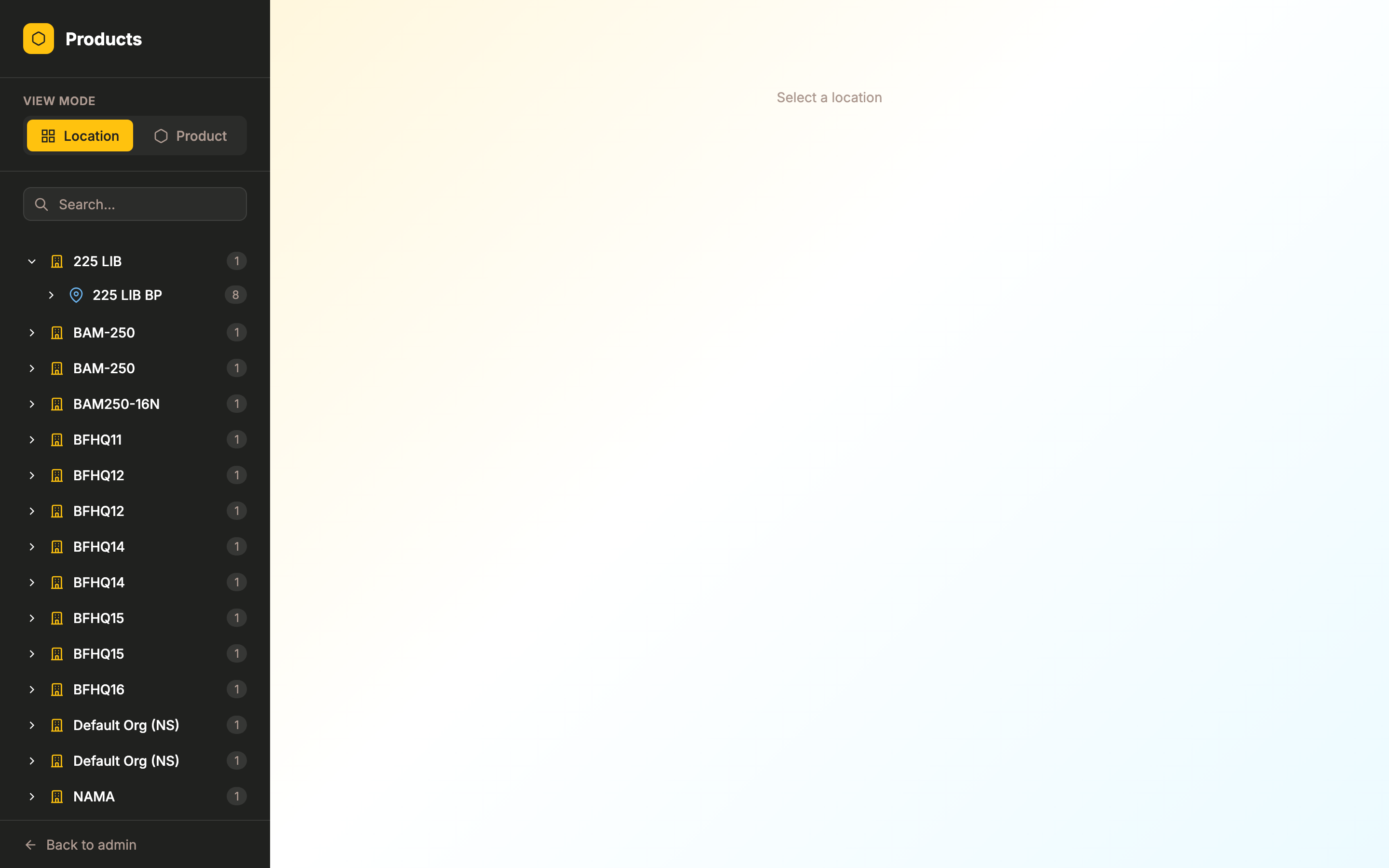
Product Management main view
📷 Main view — Sidebar with organization tree, Location/Product view toggle, and search
🛠 Getting Around
ActionHowType
Switch between Location & Product view Use the toggle buttons at the top of the sidebar Click
Navigate Org → Location → Machine Click the arrow to expand each level in the sidebar tree Click
Search sidebar Type in the search box at the top of the sidebar Type
Resize sidebar Drag the right edge of the sidebar Drag
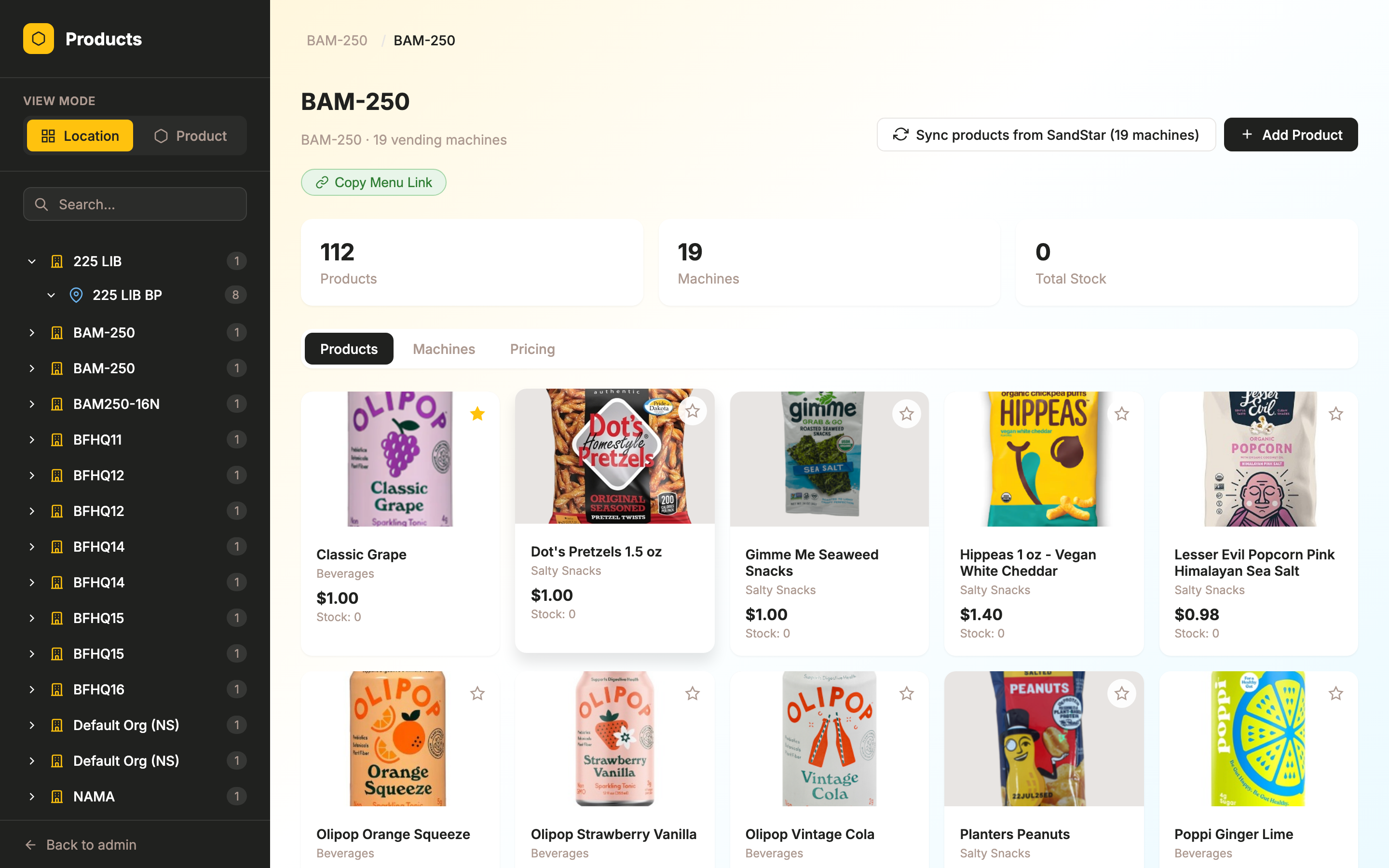
Location selected with product grid
📷 Location selected — Product grid with images, prices, stock, featured stars, and tabs (Products / Machines / Pricing)
🍴 Products Tab (Location View)
ActionHowType
Browse products Select a location → Products tab shows a visual grid of all products in the menu Click
Search products Use the search bar above the product grid Type
Toggle featured product Click the star icon on the top-right of any product card Toggle
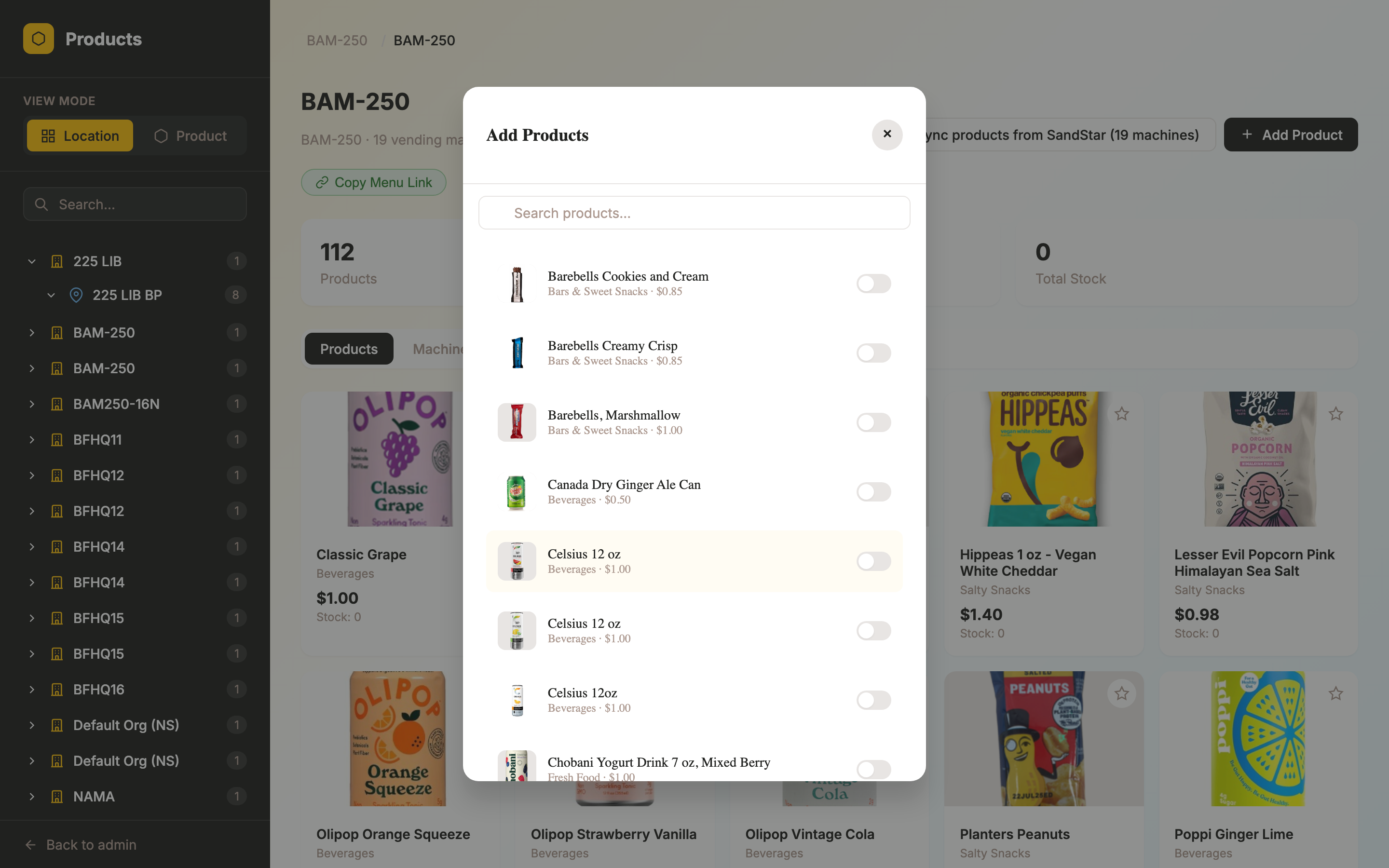
Add product to menu Click "+ Add Product" → search and select from the product catalog → set price, stock, availability Form
Remove product from menu Click the trash icon next to the product in the table view Click
View product details Click on a product card to see full details, locations where it appears, and pricing Click
Add Product modal
📷 Add Products modal — Search and toggle products to add them to the location's menu
🤖 Machines Tab (Location View)
ActionHowType
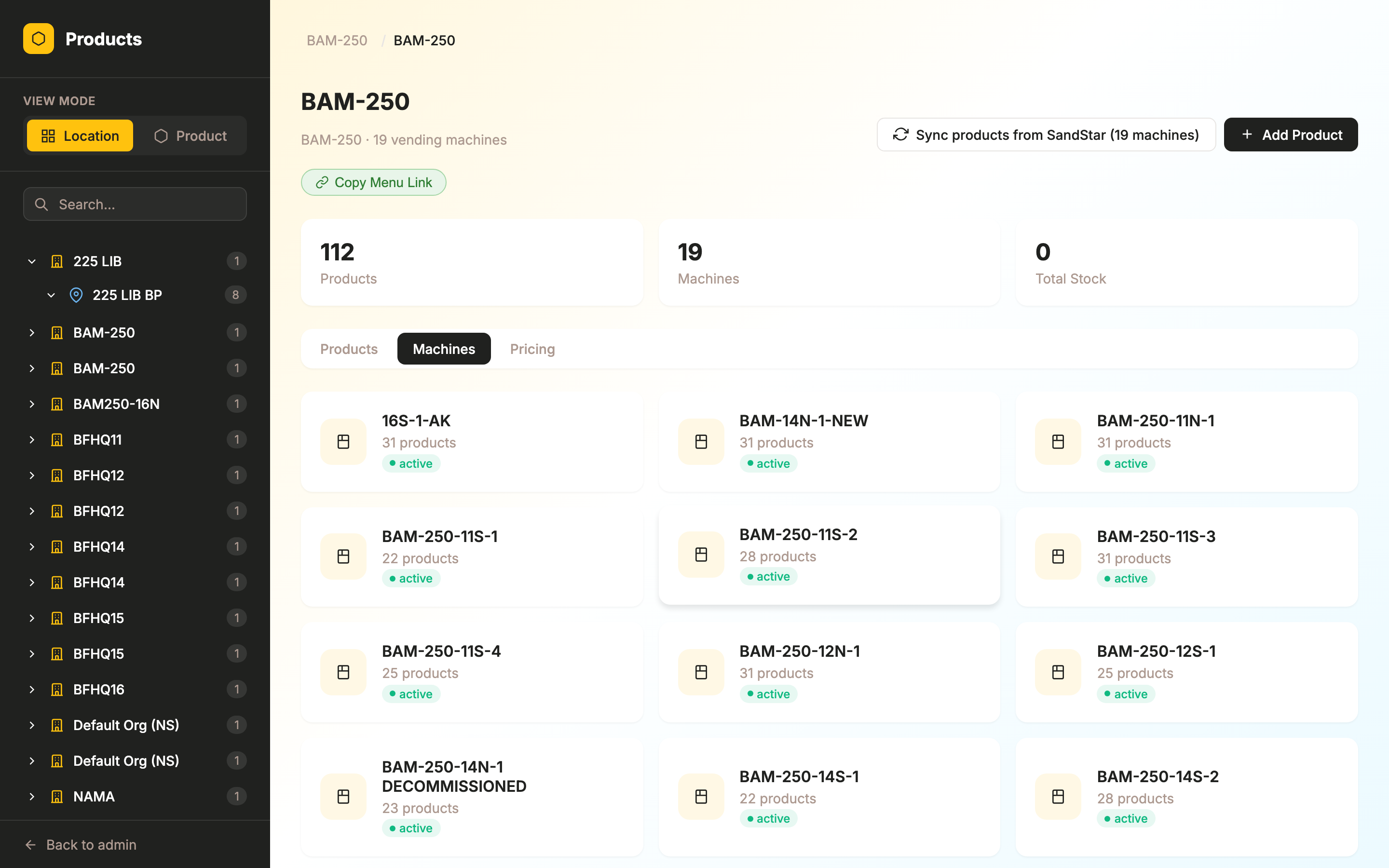
View machines at a location Select a location → Machines tab shows cards for each vending machine Click
See machine status Each card shows a green/orange/red badge with the current status
Click into a machine Click any machine card to see its menu items and product list Click
Machines tab
📷 Machines tab — Grid of vending machines at the selected location with status badges and product count
💰 Pricing Tab (Location View)
ActionHowType
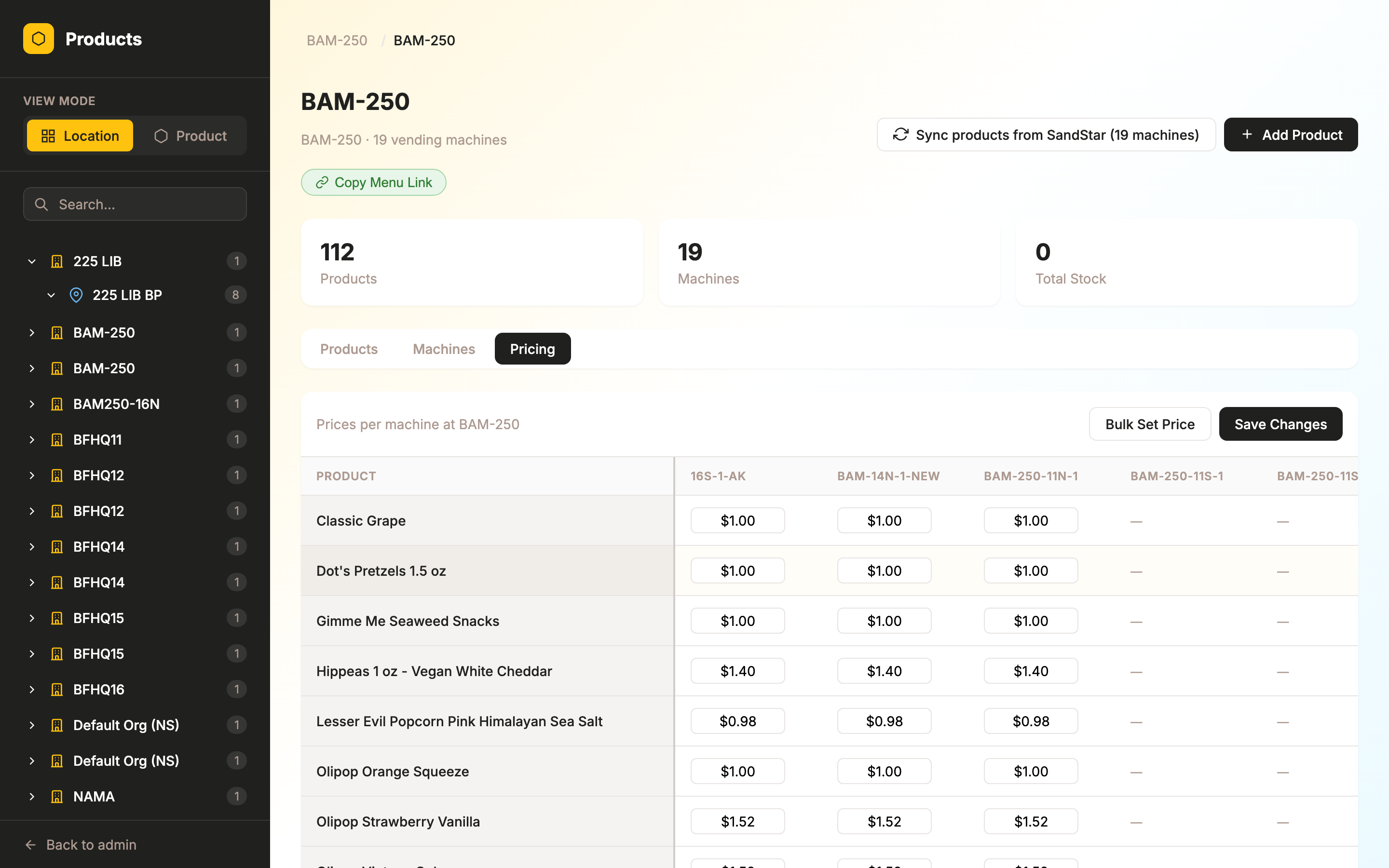
View cross-machine pricing Select a location → Pricing tab shows a table of products vs. machines Click
Edit price per machine Click any price cell in the table → type the new price → press Enter or Tab Inline
Edit stock per machine Click the stock number in the table → type the new value Inline
Bulk set price Click a product row → "Set Price" button → choose machines → enter price → Apply Bulk
Toggle availability Click the toggle switch in the availability column Toggle
Change menu item category Use the category dropdown in the table row to reassign Select
Pricing tab
📷 Pricing tab — Cross-machine pricing table with inline editable prices, Bulk Set Price, and Save Changes
✍️ Create & Edit Products
ActionHowType
Create a new product Switch to Product View → click "+ New Product" → fill in name, SKU, category, price, image Form
Edit product details Click on a product → click "Edit" → modify fields → Save Form
Upload product image In the edit form, click the image area or "Choose File" Upload
Delete a product Click on a product → click the trash icon in the header Click
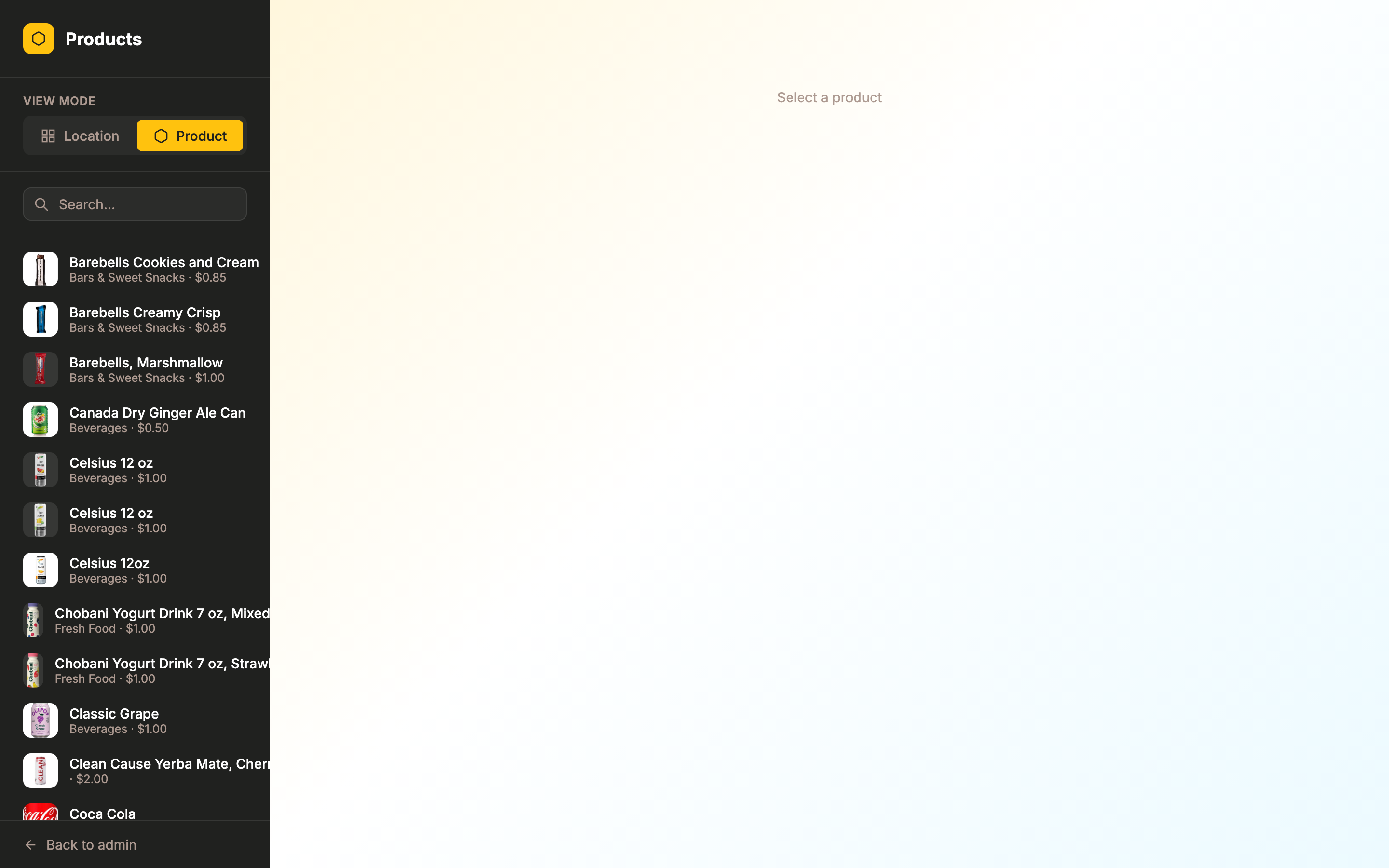
Product View
📷 Product View — Browse all products in the sidebar with images and prices
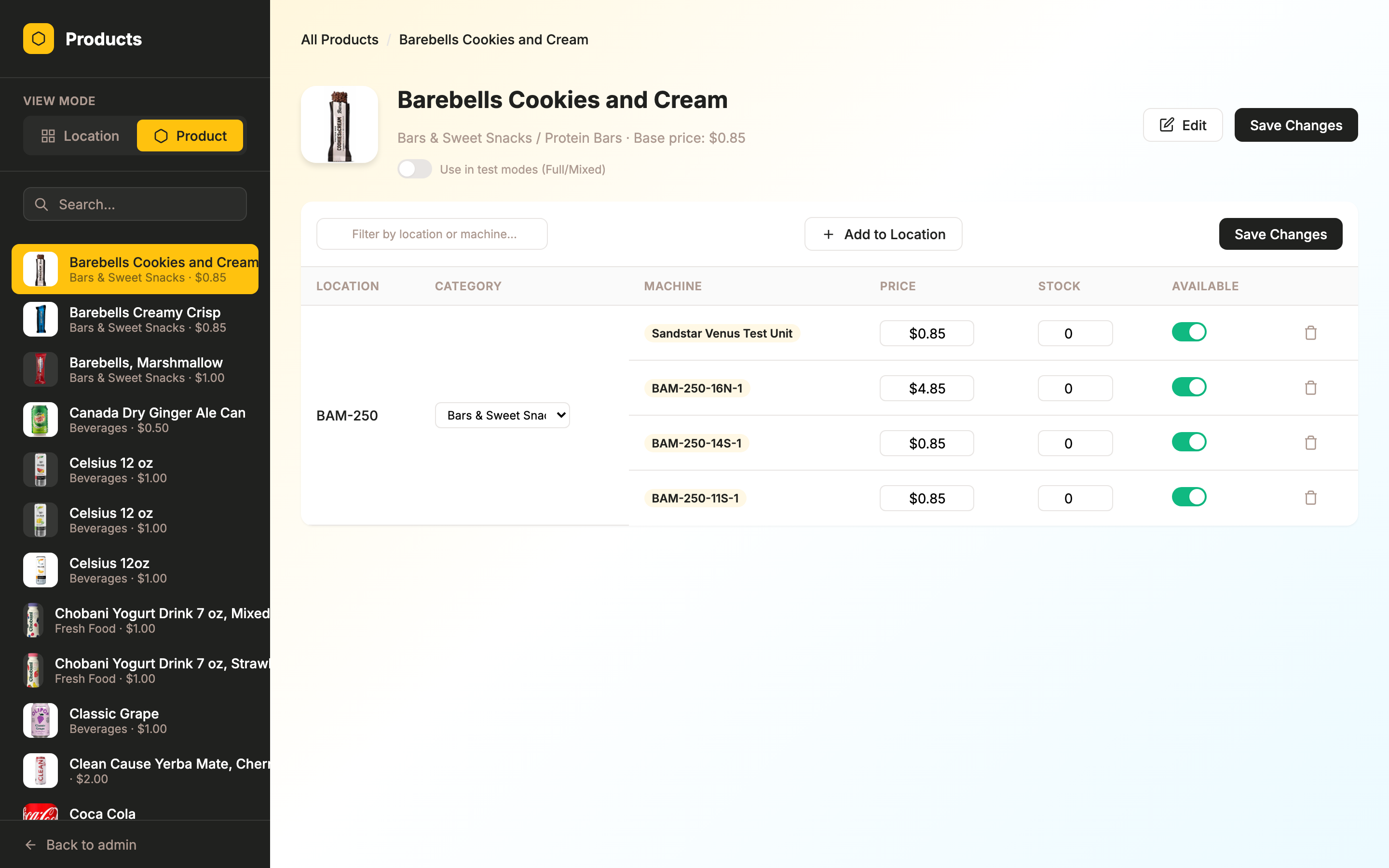
Product detail
📷 Product detail — Locations, machines, pricing, stock & availability
🔄 Sync & Menu Management
ActionHowType
Sync products from SandStar Click the "Sync" button next to a location or machine (requires external_id) Sync
Create menu for a location If no menu exists, a prompt appears → click "Create Menu" Click
Copy menu QR link Click the link icon next to the menu name in the header area Click
⚠️
SandStar Sync only works for machines that have an external_id configured and when the SandStar integration is active. The sync runs in the background — you'll see a confirmation toast when the task is queued.
🎨
Category Block Editor
Custom panel · Edit hero banners & spotlight content blocks
/admin/product-management/blocks/
🎬
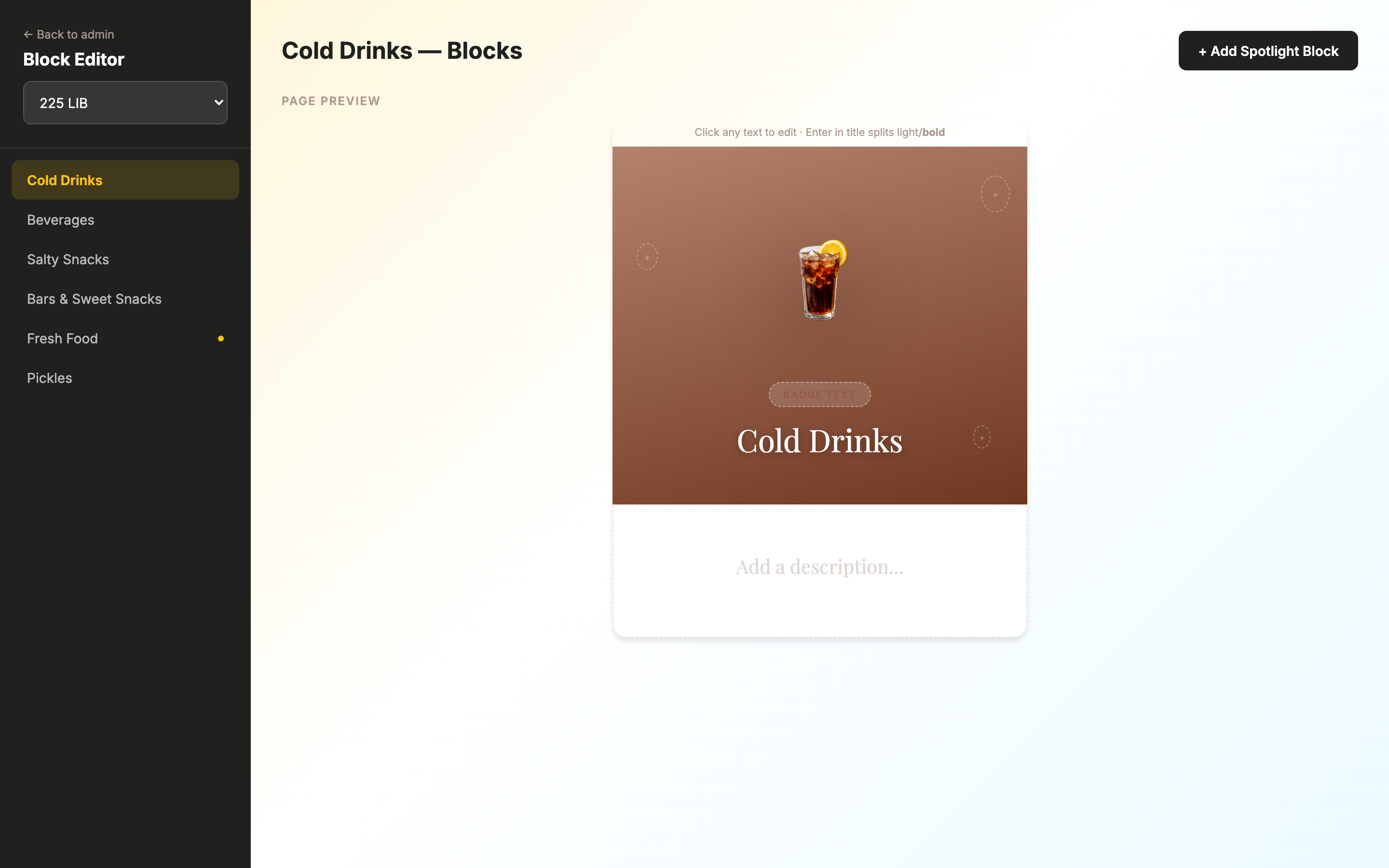
This editor shows a live phone preview. All edits (text, images, colors) update the preview in real time. Click directly on any text in the preview to edit it.
Block Editor with category selected
📷 Block Editor — Organization selector, category sidebar (dot = has blocks), live phone preview with hero banner and inline editing
🎯 Getting Started
  1. 1 Select an Organization from the dropdown at the top of the sidebar
  2. 2 Click a Category in the sidebar list (a yellow dot indicates it already has blocks)
  3. 3 The phone preview loads with the category's hero banner and existing blocks
🌄 Hero Banner Editing
ActionHowType
Edit badge text Click directly on the badge pill at the top of the hero → type new text Inline
Edit category title Click on the title text → type new name. Press Enter once to split into light/bold lines Inline
Edit description Click on the description text below the banner → type new text (quote marks are added automatically) Inline
Change hero image Hover over the round image → click "Change Image" → select file. The background gradient updates automatically from the image's dominant color Upload
Add/change decorations Click any of the 3 decoration slots (dashed circles at corners) → upload an SVG or image Upload
Remove a decoration Hover over a decoration → click the × button Click
Save hero changes Click the checkmark button at the top-right corner of the hero banner Click
⚠️
Title formatting: The first line appears in light weight and the second line (after pressing Enter) appears in bold. Only one line break is allowed.
Spotlight Blocks
ActionHowType
Add a new block Click "+ Add Spotlight Block" at the top right Click
Edit block text Click directly on the eyebrow, title, or story text in the preview Inline
Change block background color Hover over the block → click the palette icon → pick a color Color Picker
Add value pair Click "+ Add value" at the bottom of the block → fill in label and value Form
Edit/remove value pair Click on any value label or number to edit. Click the × to remove Inline
Reorder blocks Hover over a block → use the up/down arrow buttons Click
Toggle block active/inactive Hover over a block → click the eye icon. Inactive blocks show a dimmed overlay Toggle
Delete a block Hover over a block → click the red trash icon Click
🤖
Vending Machines
Django admin · Status, test modes, QR codes & sync
/admin/machines/vendingmachine/
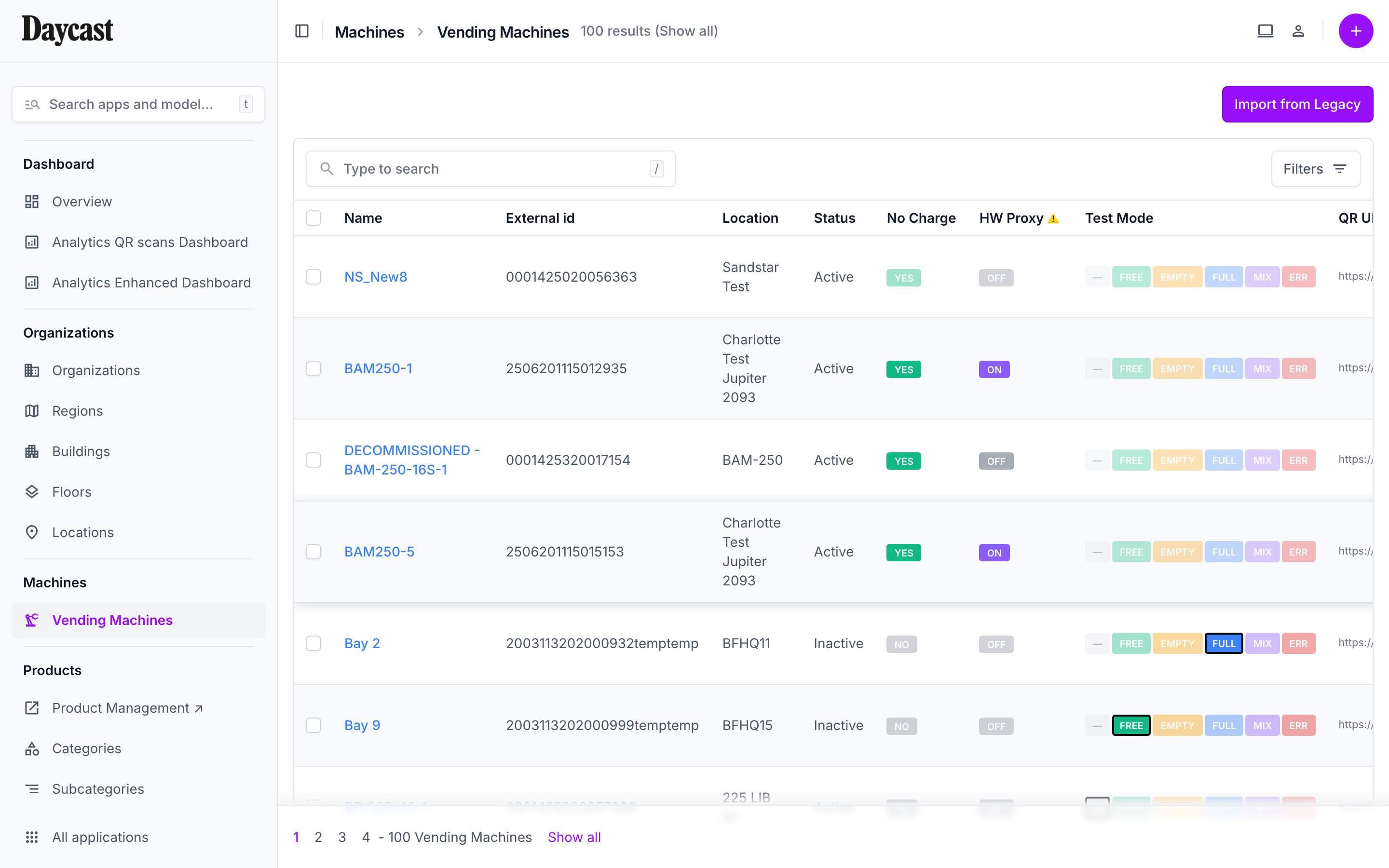
Vending Machines list
📷 Vending Machines list — Name, External ID, Location, Status, No Charge & HW Proxy toggles, Test Mode buttons, QR URL
🔘 Status & Toggles
ActionHowType
Toggle No Charge Click the No Charge toggle in the machine's row. Instantly toggles on/off — when enabled, the machine dispenses products without requiring payment Toggle
Toggle Hardware Proxy Click the HW Proxy toggle. This syncs with the legacy system and updates the QR code URL Toggle
🛑
Toggle constraints: No Charge is disabled when test mode is active and hardware proxy is off. Test Mode buttons are disabled when hardware proxy or No Charge is enabled. These safeguards prevent conflicting states.
🔧 Test Modes

Click any mode button directly in the machine's row to activate it. The active mode is highlighted.

— NONE FREE EMPTY FULL MIX ERR
ModeWhat it does
NONENormal operation (default)
FREESimulates free vend — no payment required
EMPTYSimulates empty vend — machine reports no product dispensed
FULLSimulates full inventory — all slots appear stocked
MIXMixed scenario — some slots empty, some full
ERRDoor malfunction simulation — machine reports door error
📲 QR Codes
ActionHowType
Preview QR code Click the "QR" button in the machine's row → a preview popup appears Click
Download QR code Click the download button next to the QR preview → saves as PNG Click
Copy QR URL Click the copy icon next to the URL in the QR URL column Click
⚠️
Hardware Proxy machines have a different QR URL base. When you see a warning icon next to the URL, it means the machine is in proxy mode and uses the proxy QR base URL.
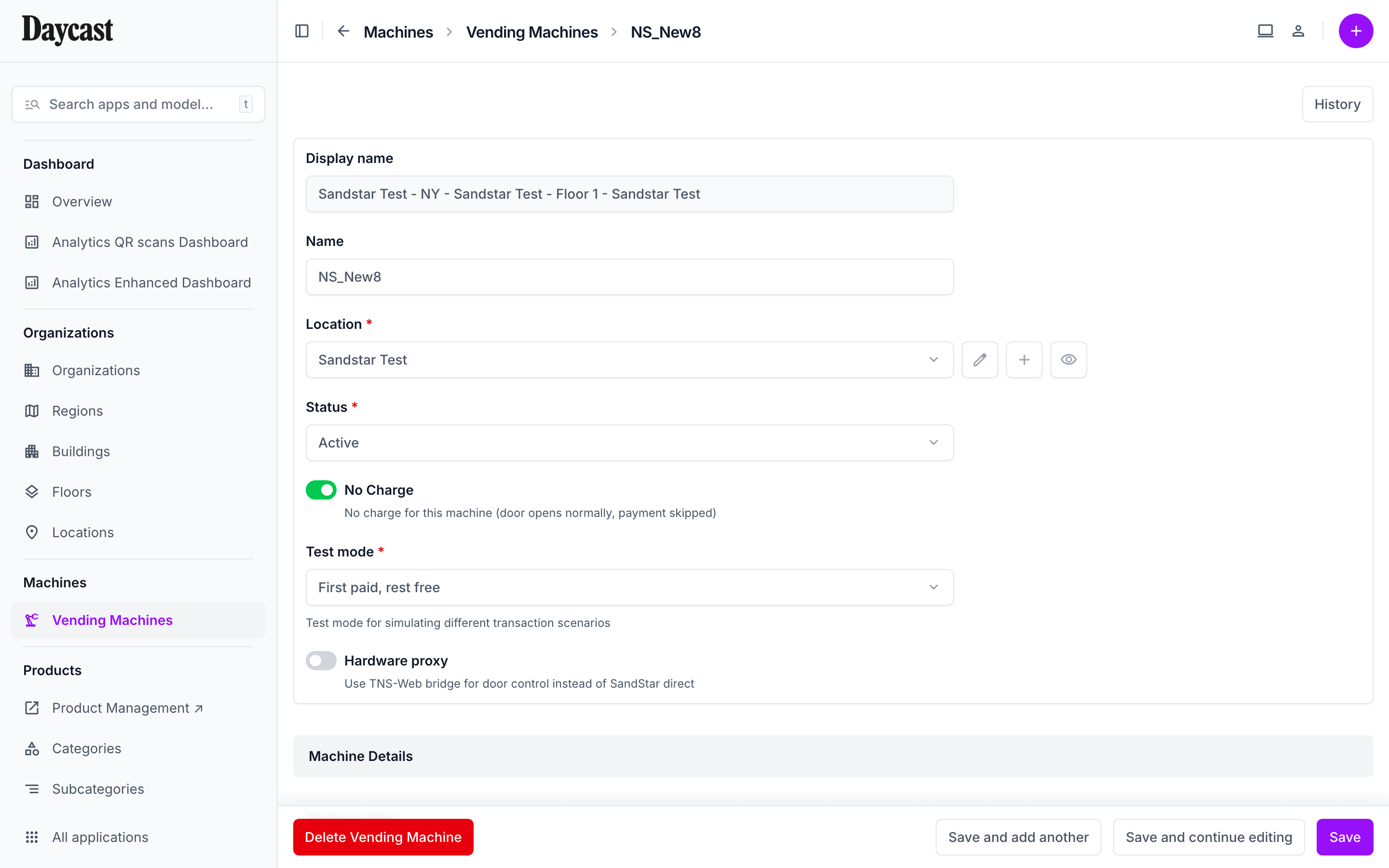
Machine detail
📷 Machine detail — Edit form with name, serial, location, status, and all configuration fields
🔄 Product Sync
ActionHowType
Sync products for a machine Click the "Sync" button in the machine's row (only visible if external_id is set) Sync
Sync all machines from legacy Click "Sync All from TNS" button at the top of the page Sync
🔍 Search & Filter
FilterOptions
SearchName, serial number, external ID, location name, manufacturer, model
OrganizationFilter by organization (only shows orgs with machines)
LocationFilter by location (only shows locations with machines)
StatusActive, Maintenance, Offline
No ChargeYes / No
Test ModeNone, Free, Empty, Full, Mixed, Door Error
Hardware ProxyYes / No
Created DateDate range picker
🏷️
Categories
Django admin · Import/export, colors & sponsored categories
/admin/products/category/
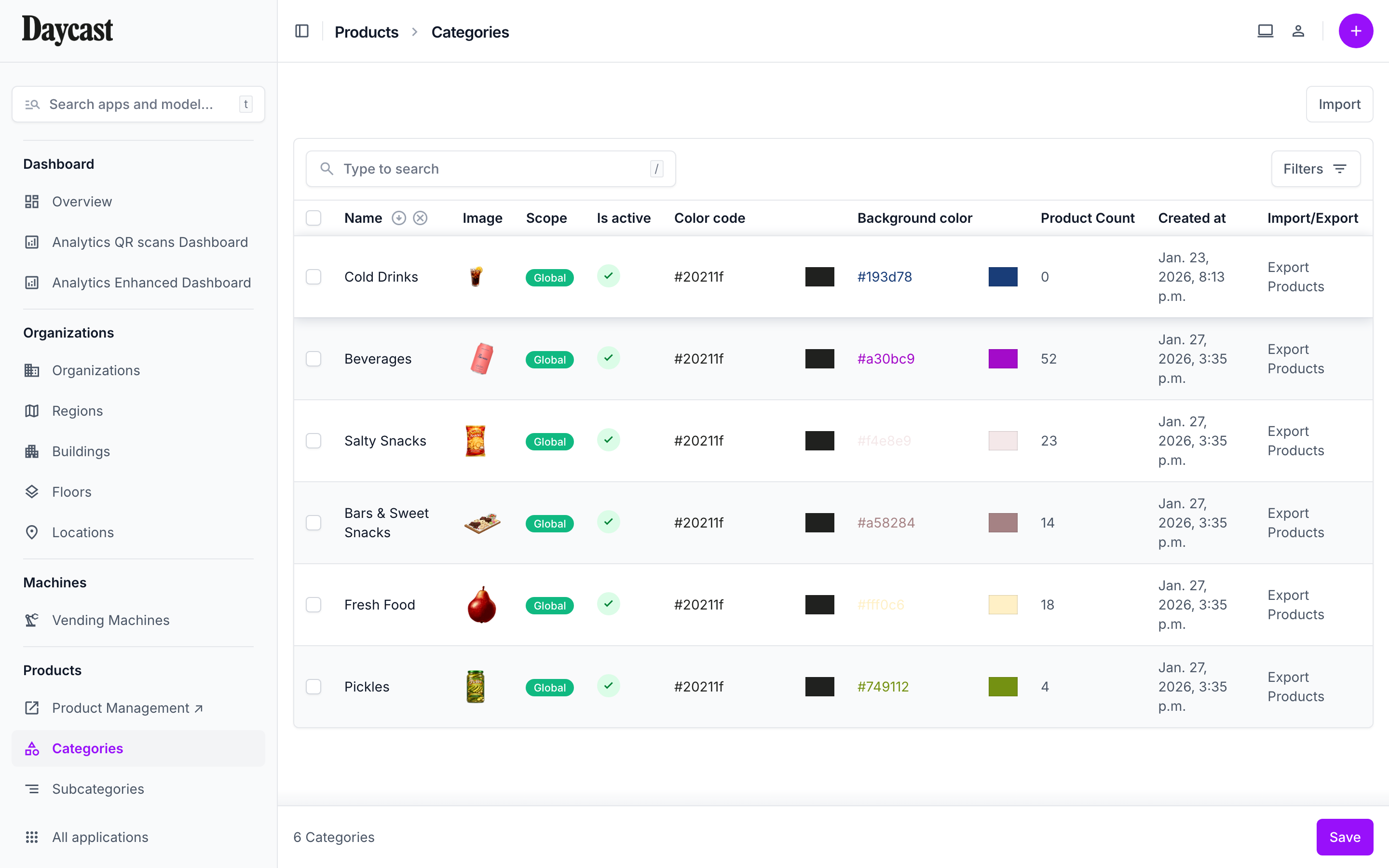
Categories list
📷 Categories list — Image thumbnails, scope badges (Global), color codes, product counts, and Export per row
📋 Manage Categories
ActionHowType
View category list Shows: image thumbnail, name, scope badge (Global or Org name), active status, color codes, product count
Edit colors inline Click directly on the color_code or background_color fields in the list → type new hex value → press Enter Inline
Create a category Click "Add Category" → fill in name, display name, description, image, colors, organization (leave blank for Global) Form
Edit a category Click on the category name → modify fields → Save Form
Upload category image In the edit form, use the image field. Blurhash and dominant color are extracted automatically Upload
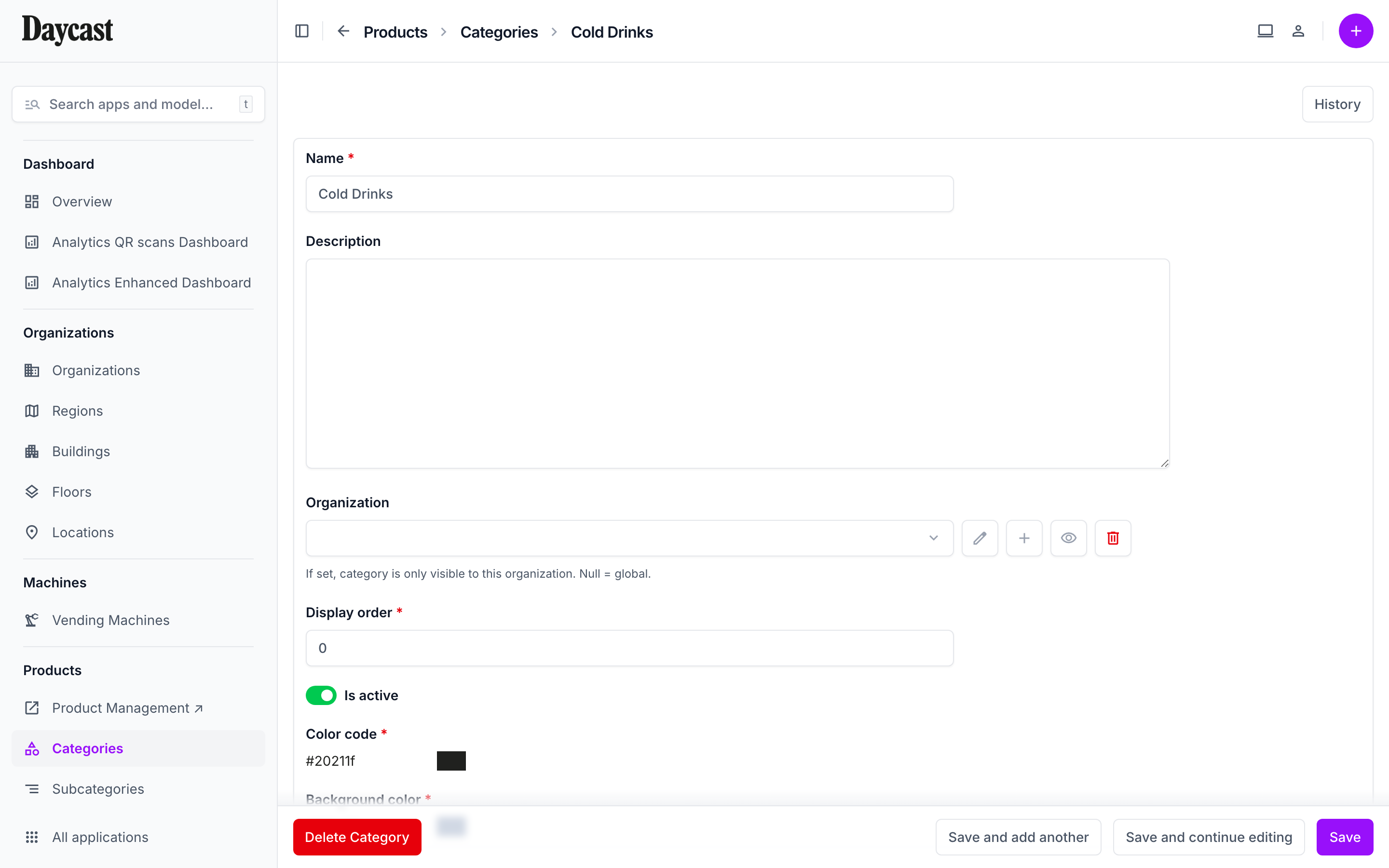
Category edit form
📷 Category edit form — Name, display name, description, image, colors, and organization scope
📦 Import & Export
Import categories from file
  1. 1 Click "Import" button at the top of the category list
  2. 2 Choose your file format: CSV, XLSX, JSON, or ODS
  3. 3 Select the file → click "Submit"
  4. 4 Review the preview of changes → click "Confirm import"
Export categories to file
  1. 1 Click "Export" button at the top of the category list
  2. 2 Choose format: CSV, XLSX, JSON, or ODS
  3. 3 Click "Submit" → file downloads automatically
💡
You can also export individual rows by clicking the export button in each category's row.
Sponsored Categories (per Organization)
Manage which categories are sponsored
  1. 1 Go to Organizations → click an organization
  2. 2 Scroll to the "Sponsored Categories" section
  3. 3 Click any category chip to toggle it on/off. Active chips have a dark border and full opacity
📂
Subcategories
Django admin · Organize products within categories
/admin/products/subcategory/
Subcategories list
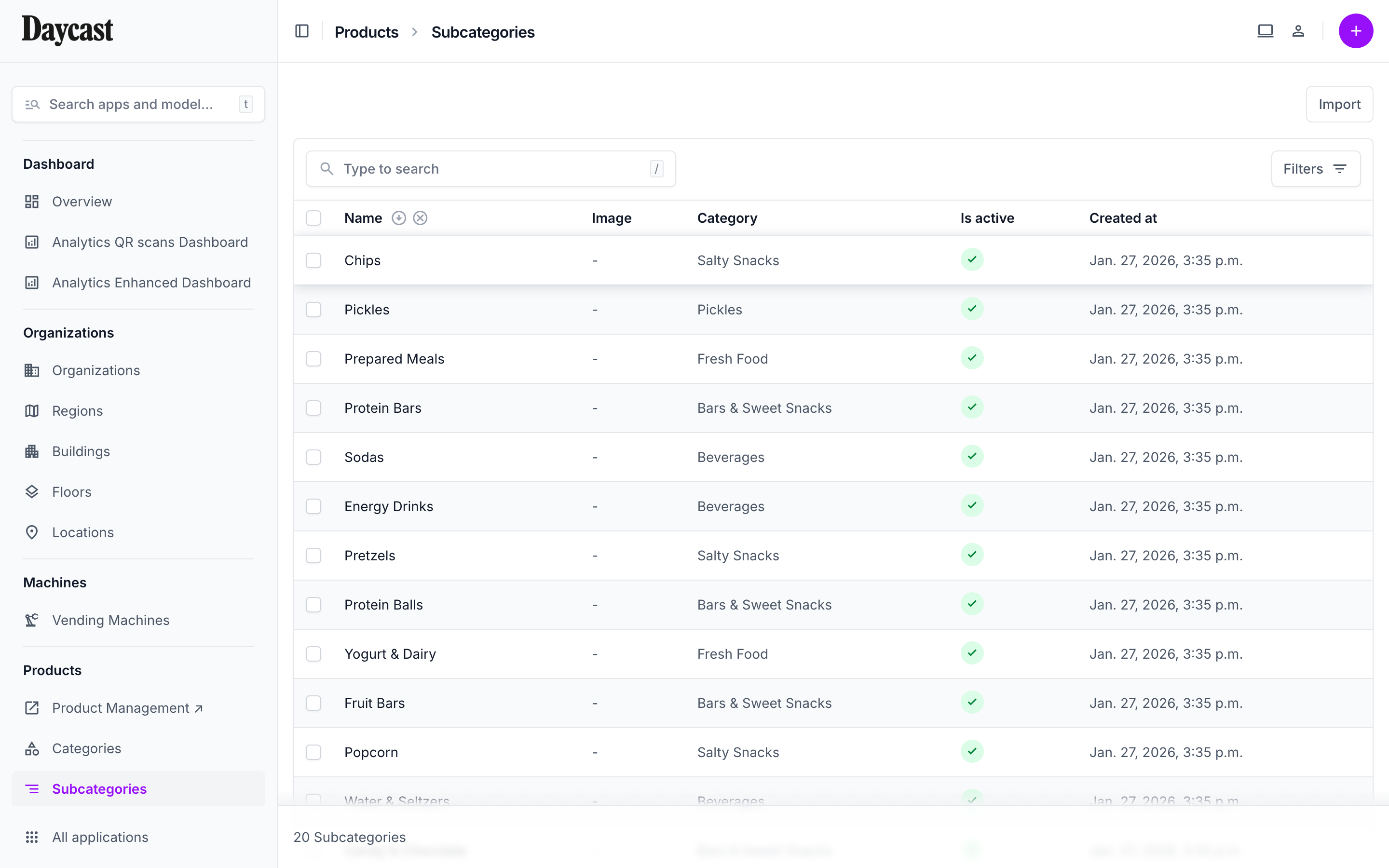
📷 Subcategories list — Image, name, parent category, active status
Subcategory edit form
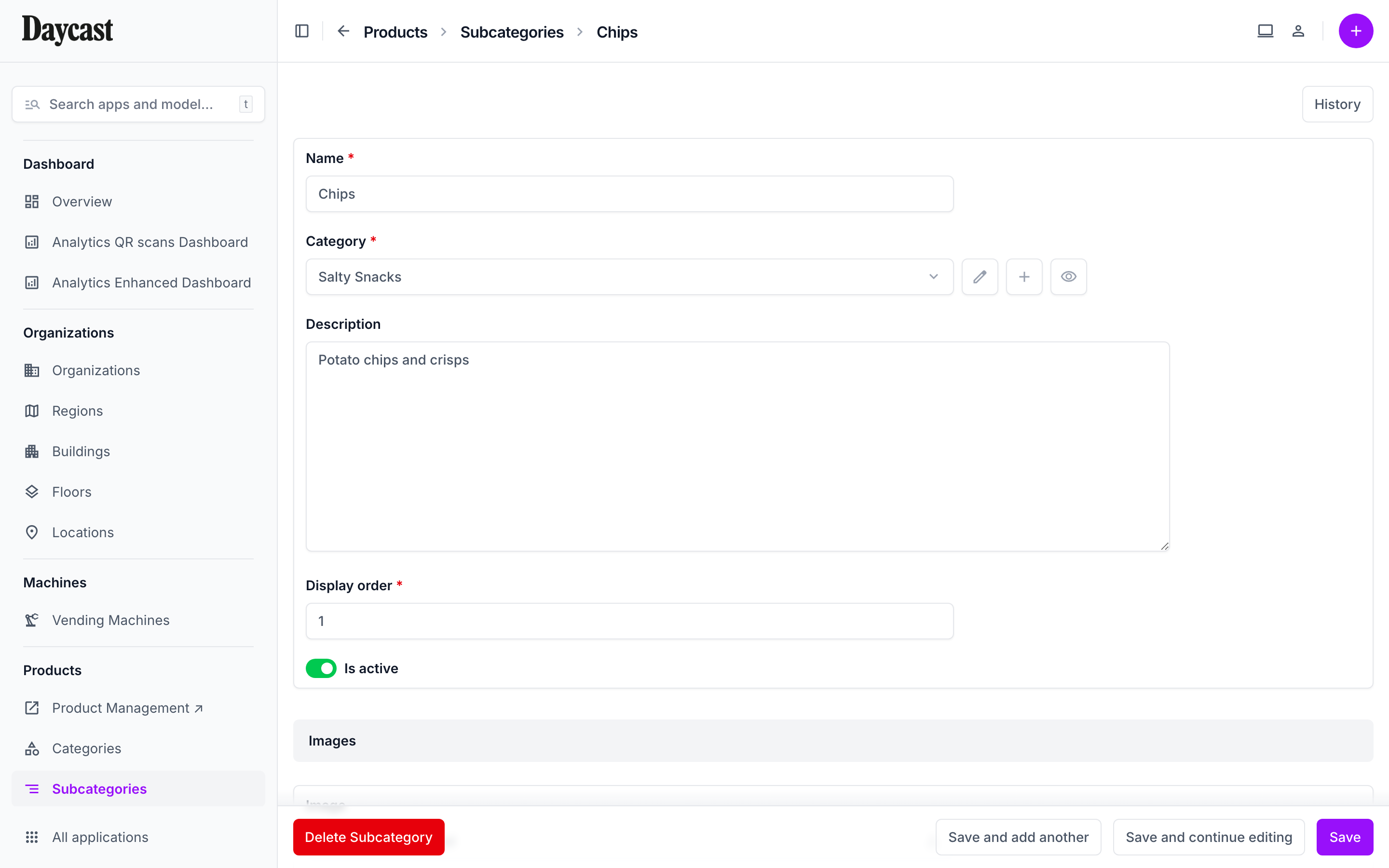
📷 Subcategory edit form
📋 Manage Subcategories
ActionHowType
View subcategories List shows: image thumbnail, name, parent category, active status, creation date
Filter by category Use the Category filter in the right sidebar to show only subcategories of a specific category Click
Create a subcategory Click "Add Subcategory" → fill in name, description, select parent category, upload image Form
Edit a subcategory Click on the subcategory name → modify fields → Save Form
Toggle active/inactive In the edit form, use the "Is active" checkbox Toggle
Search Use the search bar to find by name or description Type
💡
Subcategories help organize products within a category. For example, under "Beverages" you might have "Hot Drinks", "Cold Drinks", and "Juices".